For all those who are not sure if they should jailbreak their iPhone 3G? Read here.

For those who have already done that, here is the list of apps you should have in your jailbreaked iPhone 3G.


Cycorder: One of the many things missing in iPhone is video recording facility. This app lets you record videos is easy and quick way. You can also transfer these videos to your PC. I am still to figure that out.


BiteSMS: Yet another feature we all sorely miss is forwarding messages. BiteSMS is a simple and easy to use app which lets you forward and delete messages. MySMS is another similar and feature rich app. I don’t use it because BiteSMS gives me the basic feature of forwarding sms I am looking for.

MxTube: You Tube app in iPhone lets you bookmark your favourite videos. But each time you want to check out those videos or show it to some of your friends, you need wifi connection. MxTube lets you download your favourite videos right in your iPhone. It also has search option.

Snapture: Mr. Steve, so what if you have not given me a zoom option in my iPhone camera. I now have Snapture. With Snapture you get zoom feature, colour mode feature, and burst option.

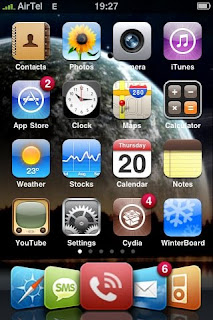
MakeItMine: This app lets you customize the carrier logo and the time to any name and number that you want. A simple and no-nonsense app. Check the screenshot below.
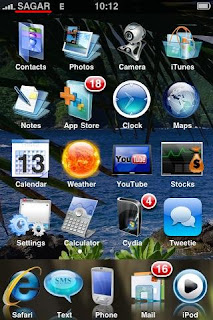

iSpazio Dockflow : Do you like the album cover flow feature in the iTunes? Now you can get the same look to your dock. This one is visually stunning. Check the screenshot below.


Famous Quotes Widget: If you are found of quotes then you will surely love this app. This app gives you a new quote on the lock screen every time you are about to unlock the screen.

Firefox Safari2: If you are a Firefox fan or want to give a new look to your safari browser, then this is the app you need get. It does not have any of Firefox features except for the looks.

Five Icon Dock: Ever wished you could fit in one more app to you dock? Well, your wish comes true with this five icon dock. So now stack your favourite and most used icon along with four others.

Genesis of this post: I am about to upgrade my iPhone from firmware 2.1 to 2.2.1. I did not upgrade to 2.2 bcoz I did not want to install my cydia apps all over again. So I have jotted down all the apps and themes I will have once I upgrade my iPhone.

Please note, I might have missed out of few interesting and useful apps. But this list is based on my limited knowledge and personal usage of the apps. More suggestions are always welcome.
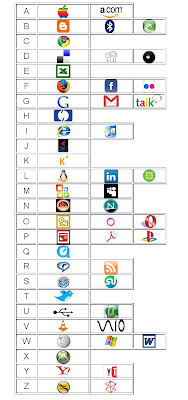
Today, technology is an integral part of our lives. The way technology is shaping our lives; the day is not far when our school textbooks will have its own technology dictionary. :-) So, what will our technology dictionary look like? This is a small attempt to make a technology dictionary from A to Z. The dictionary is in a form of a quiz.

So, how many technology brands can you recall? If you recall every brand then you are certainly a geek. :-)

(Click here to zoom)

Note: There were some alphabets which had more than three brands. Eg: W – Word press. But I have refrained from adding more than three brands for each alphabet.

If you want the answers or have suggestions, just drop in a mail at
sagar.sha@gmail.com or a Tweet @sagsha

Disclaimer: The logos used are only for representative purposes. Not for commercial purposes. Please don’t sue me.

There are three tech companies I admire the most, Apple, Microsoft and Google. But when it comes to leadership of these companies, no one comes close to Steve Jobs. What separates Steve Jobs from the rest of the tech entrepreneurs is his ability to blend art and science (read creativity and technology) into one and bring out products which re-defines the category.

Here is a compilation of the best quotes from this Apple Man whom I admire the most for his creativity, vision and leadership. His speech at the Stanford University is also worth reading.

Life and Career

· Your time is limited, so don't waste it living someone else's life. Don't be trapped by dogma -- which is living with the results of other people's thinking. Don't let the noise of others' opinions drown out your own inner voice. Most important, have the courage to follow your heart and intuition. They somehow already know what you truly want to become. Everything else is secondary.
· I'm convinced that about half of what separates the successful entrepreneurs from the non-successful ones is pure perseverance.

· People think focus means saying yes to the thing you've got to focus on. But that's not what it means at all. It means saying no to the hundred other good ideas that there are. You have to pick carefully.

· We don't get a chance to do that many things, and every one should be really excellent. Because this is our life. Life is brief, and then you die, you know? And we've all chosen to do this with our lives. So it better be damn good. It better be worth it.

· I would trade all of my technology for an afternoon with Socrates.

· Being the richest man in the cemetery doesn't matter to me... Going to bed at night saying we've done something wonderful... that's what matters to me.
People

· Recruiting is hard. It's just finding the needles in the haystack. You can't know enough in a one-hour interview. So, in the end, it's ultimately based on your gut. How do I feel about this person? What are they like when they're challenged? I ask everybody that: 'Why are you here?' The answers themselves are not what you're looking for. It's the meta-data.

· When I hire somebody really senior, competence is the ante. They have to be really smart. But the real issue for me is -- are they going to fall in love with Apple? Because if they fall in love with Apple, everything else will take care of itself. They'll want to do what's best for Apple, not what's best for them, what's best for Steve, or anybody else.
Customer


· You can't just ask customers what they want and then try to give that to them. By the time you get it built, they'll want something new.

· Our DNA is as a consumer company -- for that individual customer who's voting thumbs up or thumbs down. That's who we think about. And we think that our job is to take responsibility for the complete user experience. And if it's not up to par, it's our fault, plain and simply.

Innovation and Design


· It's not about pop culture, and it's not about fooling people, and it's not about convincing people that they want something they don't. We figure out what we want. And I think we're pretty good at having the right discipline to think through whether a lot of other people are going to want it too. That's what we get paid to do. We just want to make great products.

· Innovation has nothing to do with how many R&D dollars you have. When Apple came up with the Mac, IBM was spending at least 100 times more on R&D. It's not about money. It's about the people you have, how you're led, and how much you get it.

My Personal Favorite:

· Here's to the crazy ones, the misfits, the rebels, the troublemakers, the round pegs in the square holes... the ones who see things differently -- they're not fond of rules... You can quote them, disagree with them, glorify or vilify them, but the only thing you can't do is ignore them because they change things... they push the human race forward, and while some may see them as the crazy ones, we see genius, because the ones who are crazy enough to think that they can change the world, are the ones who do.

Steve Jobs. Get Well Soon.

Photo: ideaonly.net

There were 100+ ideas generated on Twitter within a span on four hours when Twitterite (@Sampad) just shot of a question 'How do you know Twitter has gone mainstream in India?

So overwhelming was the response that the hashtag #twitindistream featured in the top 10 Trending Topics on Twitter for quite a while.


Photo Coutesy : sampadsain.com

The responses were quite creative, hilarious and also true to some extent. Below are my 30 odd personal favourite tweets.

1. When Kaamwali bais (house maids) create a hashtag and bitch about their memsaabs.

2. When parents say ‘Beta vaha pohachte hi Twitter karna’ [Son, tweet as soon as you reach...]

3. When Amitabh, Aamir and SRK have their own Twitter accounts and it becomes the Breaking News on Aaj Tak.

4. When railway stations will announce via twitter rather than by loudspeakers.

5. When ‘Hand’ is replaced by’@Handle‘ as the new logo of Congress.

6. When our leaders ask for ‘Tweevotes‘ instead of ‘Votes’ during elections.

7. When visitng cards will have Twitter handles (@handle) instead of email ids.

8. When a minister will tweet his resignation and send a DM to CM with plea not to accept the resignation.

9. When #Reliance will launch a company named BIGtwit.

10. When Aamir, SRK and Akshay use Twitter to promote their next big budget films.

11. When a book is released ‘100 Signs of Twitter becoming mainstream in India‘ and becomes a best seller.

12. When every bollywood movie will have a twit version for those who are short of time.

13. When school exams will say ‘Answer in Twitter’ instead of ‘Answer in Brief’.

14. When you set twitter as your homepage of your computer.

15. When Political Manifesto will be ‘Roti, Kapda, Makaan aur Twitter’ for aam aadmi.

16. When MNS will make it mandatory to type all Tweets in Marathi.

17. When Twitter birdie becomes the next face of a brand like #Vodafone Pug but with permission.

18. The channel has a reality show called ‘Kaun Banega TwitterPati’.

19. When people join language courses to learn new language - Twittsh.

20. Some time later an award winnig movie is released, called ‘TwitterDog Millionaire‘.

21. When PM addresses a Tweet Conference to the entire nation on Twitter.

22. When India hands over Tweets of terrorists as proof to Pak and Pak accepts it.

23. When reality shows ask people to vote using tweet instead of SMS.

24. When Ekta Kapoor makes a new serial ‘Kahani Twitter Twitter Ki‘ and will get highest TRPs (Twitter Rating Points).

25. When Mumbai university introduces a new subject in colleges ‘Tweetology‘… and makes it compulsory.

26. When Walkie-Talkies are replaced by Tweetie-Talkies in the army, with paandus, and other events.

27. When Indian Cricket Team has Twitter logo on their T-shirts and bats.

28. SS, MNS start tweeting from the places they are wrecking -> Just broke a shopper’s stops glass door, kaay majja aali [In english - What fun] :P

29. When government applications ask for twitter names along with email IDs and phone numbers.

30. When you name your child as Twitter instead of Ram, Rahul or Raj.

And the best of all “When mainstream media takes cues from this and prints all the ideas along with original twitter handles.”

For a complete list click here.

For all the iPhone lovers who want to watch your favourite movies and TV shows, there are tons of iPhone video converters in the web sphere. However, most of these are paid, trail version or convert only limited part of the movie.

Videora iPhone Converter is a free and easy to use iPhone Video Converter. You can convert unlimited number of movies and TV shows.

It also gives you an option of choosing the video and audio quality of the movie.


Go and download Videora iPhone Converter Now and Here.

Have you bought that new iPhone and don’t know which applications to download from the App Store? Or finding it difficult and frustrating to select the best apps for the iPhone? Look no further. Given below is the list of all the applications you ‘must have’ for your iPhone. Have rated these apps based on their utility levels.

Around Me
- This app finds the nearest restaurants, cafes, pubs, movie halls, banks etc based on your current location. So let’s say you are in Bandra and you want to find out the nearest restaurants in Bandra. Just select ‘restaurants’ and it will search for all the list of all hotels in and around Bandra. It will give you the address, contact no and distance from your current location.

Utility Rating: 5/5
Price: Free

Facebook: This app does not need any explanation. If you have a Facebook account then this is a must have app on you iPhone. They have recently updated few features as well. I think they have got the best custom made app for iPhone.

Utility Rating: 5/5
Price: Free

Remote: Would it not be cool to control your iTunes library running your PC with your iPhone. This app does exactly that. It gives you complete control of your iTunes playlist, videos, audio books etc. Tough I do not know how many are going to actually use it.

Utility Rating: 5/5
Price: Free

Stanza : Arguably the best e-book reader on the iPhone. It has lot of free eBooks which you can download from the online catalogue.


Utility Rating: 4/5
Price: Free

Greetings: 123greetings.com is passé. If you want wish your friend on his birthday or sorry to your wife for the fight you had last night then this is app comes handy. There are lots of occasions for which you can send a greeting card. The quality of greeting cards is also very nice and new ones keep getting updated.

Utility Rating: 4/5
Price: Free

Backgrounds: There are tons of iPhone wallpaper sites. But how about a cool application that lets you download and save free wallpapers on your iPhone itself. This application gives you the best iPhone wallpapers across various themes like abstract, nature, cars and so on.

Utility Rating: 5/5
Price: $0.99

Facts : Did you know that the average person laughs 15 times a day? Or the average person has over 1460 dreams a year? If you are fascinated with such facts than this app is a must download. It has categories like Humans, Superstitions, Animals, Misc etc. A got app to have to pass your time during travel.

Utility Rating: 4/5
Price: Free

Picture Dialer: This app lets you dial to your loved ones by simply tapping on their picture. The picture display is just awesome and the user interface is really easy to use. This one is a must have app for your iPhone.

Utility Rating: 4/5
Price: Free

Now that you have mastered know-me-all keyboard shortcuts its time to move to the next level. Find below the Cool MS Word Keyboard shortcuts which will help you get work done faster. Once you start using these I bet you’ll never have to touch that mouse again.

Cool Shortcuts

1. Ctrl + E : Centre alignment of the paragraph

2. Ctrl + L : Left alignment of the paragraph

3. Ctrl + R : Right alignment of the paragraph

4. Ctrl + J : Justify alignment of the paragraph

5. Ctrl + Right Arrow : Moves one word to the right

6. Ctrl + Left Arrow : Moves one word to the left

7. Ctrl + Shift + Right Arrow : Selects one word to the right.

8. Ctrl + Shift + Left Arrow : Selects one word to the left.

9. Shift + Down Arrow: Selects the entire line by placing the cursor at the start of the line

10. Shift + Up Arrow: Selects the entire line by placing the cursor at the end of the line

11. Ctrl + ] : Increases the font size by 1 point

12. Ctrl + [ : Decreases the font size by 1 point

13. Shift + F3 : Changes to word / sentence to UPPER case, lower case and Sentence case. (Same as Format > Change Case in toolbar)

14. Ctrl + Enter : Page Break from the point cursor is placed

15. Ctrl + 1 : Single line spacing

16. Ctrl + 5 : 1.5 line spacing

17. Ctrl + 2 : Double line spacing

18. Ctrl + Backspace : Delete one word to left

19. Ctrl + Delete: Delete one word to right

20. Alt + _ (letter underlined below each toolbar word)

The last shortcut will open the toolbar option one wants to select.
For instance, To select File: Press Alt + F. (File) This will open File option.
To select Bullets and Numbering: Press Alt + o (Format) and Alt + n (Bullets and Numbering)….Isn’t this great !!!

So, guys start using these keyboard shortcuts and let your mouse go on a vacation.

Please share tips and tricks you think will make life simple.

Folks, it’s time to save more time. I always thought why do people don’t use keyboard shortcuts in MS Word to get work done faster. Maybe they don’t know these shortcuts. And hence, for the benefit of those who do not know, I am listing down some of the most useful shortcuts that will make your life easy.


I have categorized them into two.

1) Know-Me-All Shortcuts – These are the basic MS word shortcuts which everyone should know.

2) Cool Shortcuts – There shortcuts are the one which are more useful and most of us did not know. You can use these to impress the lovely ladies around you.


Know-Me-All Shortcuts

1. Ctrl+N : Open a new word document.

2. Ctrl+O : Opens a previously saved document.

3. Ctrl+X : Cut the text selection.

4. Ctrl+C : Copies the text selection.

5. Ctrl+V : Paste the text selection (Make sure cursor is placed where you want to paste)

6. Ctrl+B : Makes the text Bold (Press the keys again to remove the selection)

7. Ctrl+I : Makes the text Italic (Press the keys again to remove the selection)

8. Ctrl+Z : Undo the last action. (You can repeat this several times)

9. Ctrl+Y : Redo (You can repeat this several times)

10. Ctrl+S : Save the active document.

11. Ctrl+A : Selects all text and graphics in the document.

12. Ctrl+F : Find

13. Alt+F4 : Exit - Closes Microsoft Word.

14. Ctrl+U : Makes the text selected Underline (Press the keys again to remove the selection)

15. Ctrl + P : Prints the file

The 20 COOL Keyboard shortcuts are avaliable in my next post.

Take “Ctrl” of your “Word”

There are tons of games on the App Store (1573 Games at the time of writing this post!) … but most of the games are what I call them DIDI games (Download It and Delete It). These games are useless, waste of time, and needs to be deleted as soon as you download.

To make life easy, I am listing the most interesting and addictive games I have downloaded and played since I bought my iPhone. Most of these games are free or will costs maximum $1.99.

Application which have are labelled as ‘Lite’ connotes that it is a demo (lite) version. It is usually a free app which allows you to experience few features before you buy the main app.

Everest: Hidden Expedition: If you like solving puzzles, mysteries, jumbles etc. then this is a must have game for your iPhone. You will not put down that iPhone until you finish this game. This is an object-finding game where you race with other three contestants to climb up the highest mountain in the world: Mount Everest! With each passing stage the game becomes more and more challenging and the pictures are breath taking. This game is worth every cent!

Addictive Rating: 5 / 5
Price: $ 1.99

The Stone of Destiny: This one too is a find the hidden objects game. The difficulty level is slightly easy compared to the Everest Hidden Expedition. The graphics are quite impressive. The game has 25 levels and also many puzzling minigames.

Addictive Rating: 5 / 5
Price: $ 0.99

Sextuple Word Lite: This is a very interesting word game on the lines of Yahoo! Text Twist game. You have jumbled six letter word and you need to make as many three, four, five and six letter words as you can. Get half of the words to move to the next round. This one is a must have for the word game addicts.

Addictive Rating : 5 / 5
Price: Free

Word Freak: One more must have word game for your iPhone. This game will remain on my iPhone for a very long time. The game is similar to Cows and Bulls we play with paper and pencil game. The game will pick five letter word and you have to guess it. If the letters matching the word are in exact position then it will be marked in red colour but if the letter match the word but not in the right position it will be marked in yellow. You can also sync your scores online to feature among the Top 100 scorers.

Addictive Rating : 5 / 5
Price: Free

ESPN Cameraman: Do you remember the puzzle of finding five differences in the two pictures? Well, this one is exactly that. You have to find five mistakes in the picture, with time ticking and with only 3 hints. The pictures are simply amazing (famous sports events). You will love the thrill and speed of the game. Here too, you can sync your score online for Top 100 scorers.

Addictive Rating: 5 / 5
Price: Free

Solitaire City Lite: For all those Solitaire addicts and Spider fans this is best version to have on your iPhone. The user interface and the graphics are just too good.


Addictive Rating: 4 / 5
Price: Free

aMaze! Lite:
You think your hands are steady as a rock. Try this game. A very interesting and challenging game. You tilt and move the iPhone to make the ball pass through objects till you reach the blue marked hole.


Addictive Rating: 4 / 5
Price: Free

For all those who do not know much about iPhone hacking, here is a quick tip. Jailbreaking and Unlocking are two different things.

In 'Jailbreak' you tamper with the OS of the phone to have news apps, themes, wallpapers etc whereas in 'Unlock' you hack the phone so that it works with any other carrier of your choice. For iPhone 3G jailbreak tools are readily and freely available but hackers are yet to find a solution to unlock it. (Even if they do.. don't unlock or else you will lose your warranty).

To Jailbreak an iPhone is very simple and takes around 15-20 minutes. Please don't spend money to Jailbreak iPhone. Just follow these easy steps given on the site and be ready to install apps and change the look of my iPhone 3G. And yes, while jailbreaking the phone...if you find it is is taking time to start...don't panic!

Tutorial : http://www.iphone-hacks.com/2008/09/25/how-to-jailbreak-iphone-3g-21-with-quickpwn-21-for-windows/

I recommend you Jailbreak your phone only if you want customize the look of your iPhone with Themes, Sliders, SMS Wallpaper, Signal Bars, Battery Icon etc. or you want some (not many) interesting apps like Bite SMS (forward SMS), Cycorder and Qik (video recorder), Categories (to put app in folders) and Un Unlockable (hide the slide to unlock).

Check out the screenshots!


Google Voice Search App is finally here. The video demo (see below) makes the app look really awesome and must have app. Unfortunately, like many other apps this one too is limited to the US boundaries. We will have to wait and watch till it come in India.

So for time being (not sure how long) let's just enjoy the video and say .... WOW!!!

Whenever I visit the Apple Store, I always get fascinated with the user interface of the Apple MAC, particularly the Dock that sits at the bottom of the screen. The zoom in effect of the icons on the mouse hover is just amazing.

Till the time you and I get our hands on the Macbook let's get that dock for our Windows with Rocket Dock.

Rocket Dock is a cool application launcher for Windows that provides a dock similar to that of Mac. (screenshots below)


Here you can just drag and drop the shortcuts, auto hide the dock, customize the dock the way you like it and best of all you can minimize the active windows/applications to this dock so no one around can see what you are doing.

So next time you are playing a game or surfing the net, you just minimize the application to the dock… no one around will be able to guess what you are doing. (make sure the dock is in Auto Hide)

To download the software click here: http://rocketdock.com/download

Folks, its time to move from plain vanilla look of your Gmail account to a more classy and attractive grey and blue shade. (Firefox only)


Here are the screenshots of the new Gmail look.


The Firefox Add-on called 'Gmail Redesigned' is developed by Globex Designs. For more information and to download the add-on Click Here

I must say i impressed with their tagline “Illustrating Lives”.

For more goto: http://lifehacker.com/400156/google-redesigned-facelifts-gmail-and-gcal


Here are some interesting keyboard tricks for your iPhone. These ones are easy to master and will save lot of time. So let's get started.

Always On Caps Lock
Double tap the shift button (upper arrow on left) to keep the caps lock on. To switch off this option double tap again. To do this you will have to go to settings > General > Keyboard > Enable Caps Lock On

Hold Shift Key for Caps
Another way to use caps lock is to keep holding the shift key with one thumb and typing the message with another finger. So if you want to write ‘I LOVE MY IPHONE’ just hold the shift key and keep typing it.

Type a Period
Now save time of typing a full stop at the end of every sentence. Just double tap the spacebar key at the end of the last word and you will see a a period and a space entered automatically after the letter. Certainly a Time Saver!

Auto Correction
Do you want to type words like “I’ll” or “Don’t” very quickly? Simply type ‘ill’ and press spacebar. Or just type ‘dont’ followed by spacebar to get 'don’t'. Magic!

Type the correct letter every time
A letter isn’t entered until you lift your finger off a key. So if you touch a wrong key by accident while typing, simply slide your finger to the one you meant to type. Let go when the correct letter or symbol appears.

Accept suggested word
If you want to accept a suggested word just tap spacebar. For instance, tap spacebar after typing ‘Morni’ to select suggested word 'Morning'.

Google needs no introduction. In fact, the school textbooks of the modern day will read G for Google instead of G for Goat or G for Gun.

Have you ever come across a term iGoogle? If not then just go to Google.com and you will see ‘iGoogle’ sitting pretty on the top right corner of the web page.

So what is this iGoogle ? To start with, iGoogle is a simple, powerful way of accessing all your favourite websites, blogs, and pages in one single window. Similar to a RSS Reader.

If you want to save yourself from the trouble of going to different websites, agony of waiting for the sites to load and disappointment of seeing no new posts or articles each time you visit the site then iGoogle is a perfect tool for you.

With iGoogle, you will be able to put all your websites under one roof and check out all the new items, updates, articles posted on the website.

Based on Google’s philosophy of keeping things simple, using iGoogle is not difficult at all. So, without much ado let’s get started on how to use iGoogle.


What you will need?
1) Google Account (your Gmail or Orkut account will do)

2) Address list of your favourite websites. (I have taken 5 websites technology sites for demo)

http://lifehacker.com/
http://www.engadget.com/
http://www.techtree.com/
http://www.technobuzz.net/
http://www.macrumors.com/

Steps to use iGoogle
1) Go to
http://www.google.com/ig

2) Click on ‘Sign in’ and log in using your Google Account

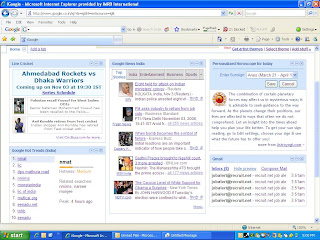
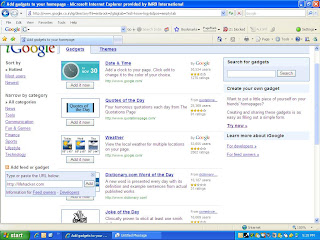
3) Now that you have signed in, you will see the default iGoogle account like this. (pic below)


4) You will get live cricket scores, horoscope, Google News India and Gmail on this page.

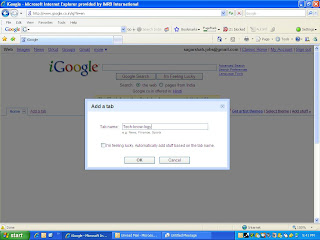
5) Now click on ‘Add Tab’ option next to ‘Home’ Tab > Give a name to your Tab (eg: My sites are on technology hence ‘Tech-know-logy’ (pic below)


Note: If you are using a common name like ‘Technology’ then you will get pre defined site loaded on it. If you do not want this then uncheck ‘I’m feeling lucky, Automatically add stuff based on the tab name.’

6) Now click on ‘Look for new stuff to add’. You will be directed to a page to add gadgets (read websites)

7) Click on ‘Add feet or gadget’ (Orange icon of RSS feed) link to add your favourite websites one by one. (pic below)


8) After you are done adding all the websites click on ‘Back to iGoogle Home’

9) You will find the top three latest posts of each of these websites. (pic below)


You will soon get addicted to this once you start using.

There tons of other things you can do, like add more news items, change the theme, drag and drop the boxes, and much more

I had downloaded the new Firefox for some time now but did not get time to download the Add-ons. Last week, I happen to be on the Firefox Add-on site and was completely amazed to see these classy add-ons.

I am listing down these add-ons which will take your browsing experience to a different level.

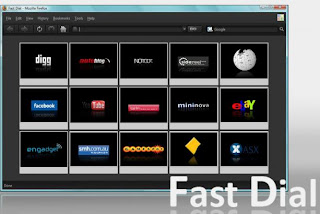
Fast Dial: This add-on is similar to speed-dial on your mobile phone. Fast Dial gives you a one click access to your favourite websites. Fast Dial is a panel of thumbnails where each thumbnail has the site address preloaded in it. Just click on the thumbnail and you will be directed to the site. Saves trouble of typing
http://www.google.com/ on the address bar.


ColorfulTabs: Add colour to your tabs. A simple and cool add-on to add different colors to your boring and lifeless Tabs. This one will get you a brownie point from your friends.


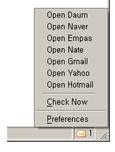
WebMail Notifier: This add-on sits on the bottom right of your browser and notifies you of new mails (unread) received in your inbox. And with one click you can open the mail account to check out the new mail. It supports : gmail, yahoo, hotmail and more.

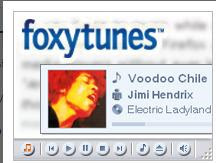
FoxyTunes: If you like to listen to music while surfing the web than this add-on is for you. FoxyTunes gives you a complete control of your music player right inside your browser. It supports most of the music players, so compatibility will never be an issue.


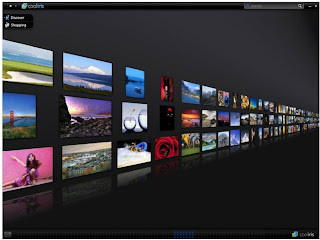
Cooliris: Who would have thought that seeing the pictures would get a completely new meaning? Get Cooliris and see your favourite pictures like you have never seen before. The only glitch is the time it takes to load the pictures. But the wait is worth it!


Fast Video Download: Now, downloading your favourite videos from You Tube is just a click away. I haven’t tried yet but must be an useful add-on considering it has downloaded 69,43,701 times and has a four star rating.


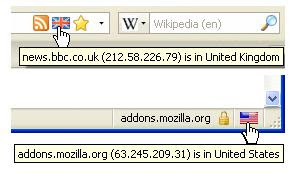
Flagfox: A good to know type of add-on. In the words of the developer, this add-on displays a country flag depicting the location of the current website's server and provides quick access to detailed location and web server information.
Besides these add-ons check out the ‘Recommended’ and ‘Most popular’ section to find more cool add-ons.

For those who haven’t started using Firefox 3:
Download Now!